Projects
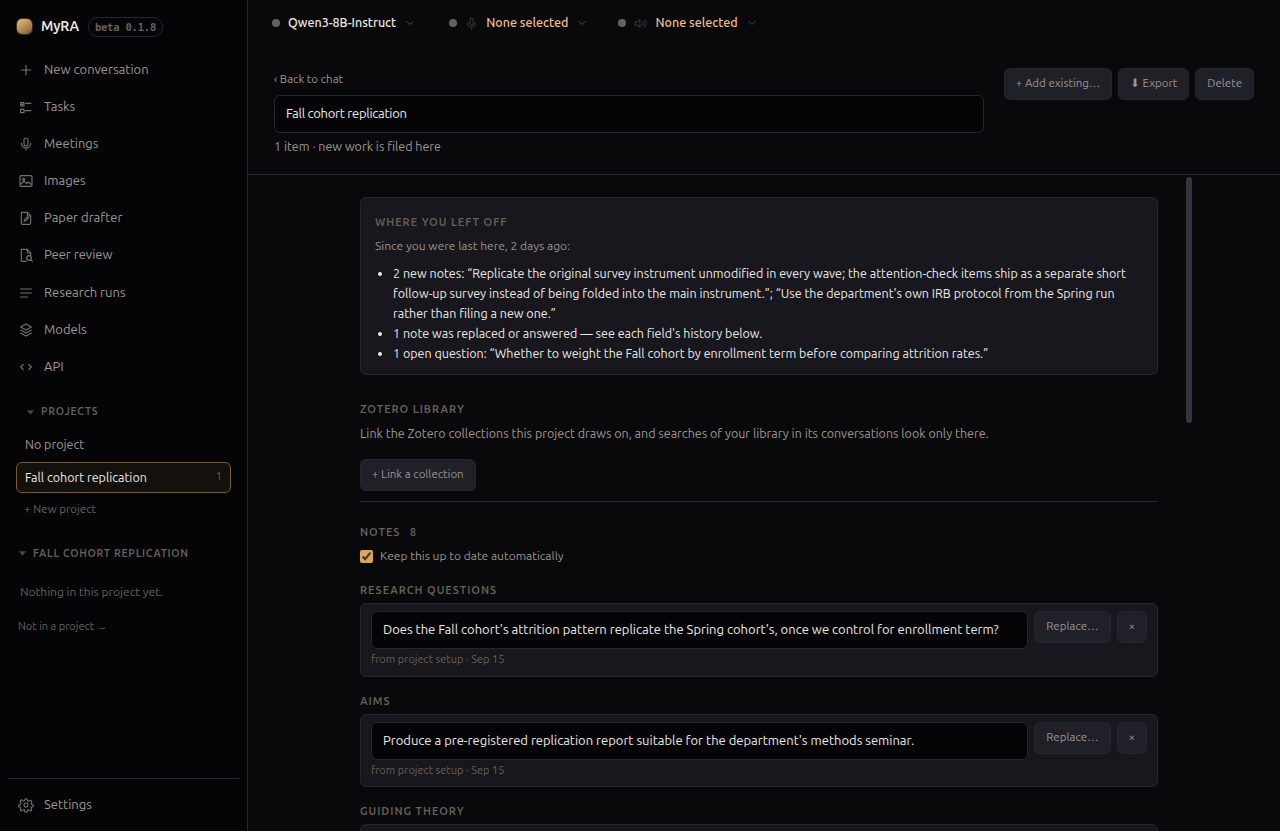
A project is a folder for one piece of work. Open it, and everything new you create — conversations, meetings, research runs, papers, peer reviews, images — files itself there automatically.
Creating and opening one
Click + New project in the left rail. You’re asked which kind:
- Simple folder — just a place to group work. Nothing else happens.
- Research project — opens a short chat about what you’re studying, and keeps what comes out of it as notes every later conversation in this project can read (see Research project notes below). A simple folder can still start that same chat later, from Start research setup on its own page — the choice here is a default, not a fork in what a project can become.
Either way MyRA creates the project and switches into it immediately — opening and working in a project is deliberately one action, not two, so the automatic filing never fires for a project you don’t think you’re in.
Rename it any time from its own page, at the top.
What lives inside
Nothing about a project changes where files sit on disk beyond normal filing — MyRA doesn’t move things around behind your back. Use + Add existing… to bring in work you did before the project existed.
Research project notes
A research project keeps notes under eight headings: Research questions, Aims, Guiding theory, Methods, Decisions, Key literature, Open questions, and Context. Every conversation filed to the project reads them, so the second conversation about a project doesn’t start by re-explaining the first.
The setup chat. Creating a research project (or clicking Start research setup on a simple folder) opens with a fixed greeting rather than a blank box: “This is a research project. Tell me about it — what you’re studying, why it matters, and anything you already know about how you want to approach it.” Describe it in your own words, and MyRA shows what it noticed as candidate notes for you to edit or clear — nothing is saved un-reviewed — then offers a handful of concrete next steps (brainstorming research questions, suggesting guiding theories, sharpening the scope, thinking through methods, noting key literature), asks a few short questions about whichever you pick, and shows what came out of that for review too.
Decisions are picked up as you talk, in any conversation in the project, not just the setup chat. Say “let’s go with X” and MyRA saves it as a note on that same turn — a notice under your message names what was kept. A checkbox on the project page, Keep this up to date automatically, turns this off; turning it off leaves the two manual routes below untouched. Nothing is ever saved without being grounded in something you actually typed, or your own reply agreeing to something MyRA proposed.
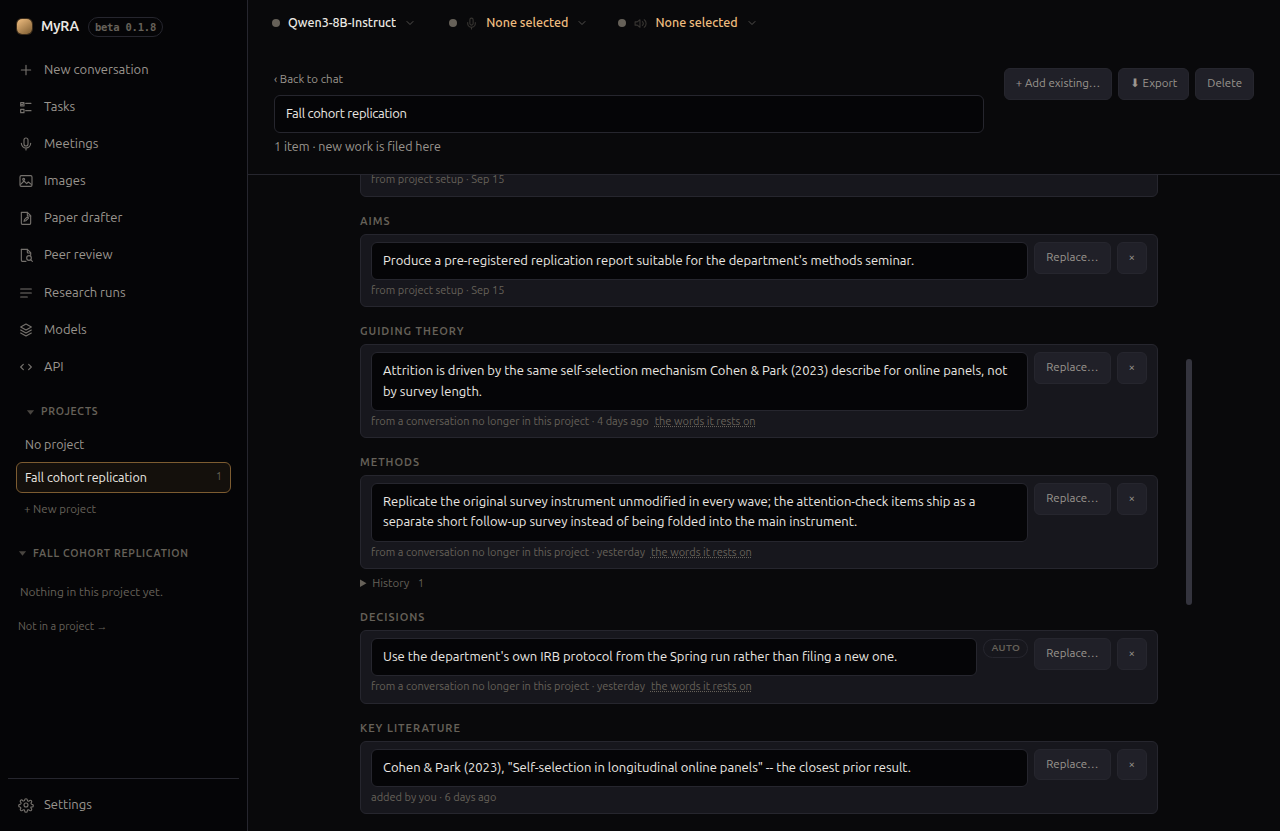
Nothing written by a person is ever silently changed. A note MyRA saved on its own is closed the moment a new one clearly replaces it. A note you (or the setup chat) wrote is never touched automatically — instead the project page asks you, beside the note: Replace… (or Answered…, for an open question) or Keep both. A closed note isn’t deleted; it drops into a History you can expand under its heading, with a Restore button if you change your mind again.
Where you left off, on the project’s own page, is built from these records with no model involved: notes added since your last visit, notes that were replaced or answered, new work filed in, open questions still open, and — when an automatic note is proposing to replace or answer something a person wrote — a line telling you suggestions are waiting under Notes.
Two more ways to add a note by hand. Highlighting any text in a reply shows a small Remember button right beside the highlight; every message also has one beside its Copy button, for keeping the whole thing (it flips to Noted once saved). Either opens a dialog — “Remember this in “<project name>”” — with a slot to file it under and the text itself, editable, so you can trim a whole reply down to the one sentence worth keeping. Separately, Update project notes from this chat, in the chat page’s status bar, re-runs the same extraction over the whole conversation on demand (it reads Checking this chat… while it works) and shows everything it found for review before saving anything — unlike the automatic pass, which only ever saves wording already grounded in something you or a confirmed reply actually said.
Every note says where it came from — the quote it was grounded on, and the conversation or meeting it happened in, which the note opens directly at that point. A decision that changes is replaced, not overwritten, and Export writes the whole history as a dated decision-log.md — how a decision changed is exactly what a methods chapter, or a reviewer, asks about.
Meetings can contribute too. A meeting filed to a research project offers Add to project notes…, which shows the decisions, questions and risks the transcript actually supports for you to review before anything is saved.
Notes are never capped for size on disk. Past a quarter of your model’s context window the project page warns you; past half, older fields are left out of what’s sent to the model, in priority order — questions and aims survive longest.
Your library
A research project can link Zotero collections and hold uploaded papers, both searchable full-text from inside its conversations. See Your library for how to add either.
Where filed work shows up
Once something is in a project, it leaves the Recent list in the rail and appears on the project’s own page instead. The rail shows one group at a time: the project you are in, or — through the button under the list — the work that is in no project at all.
That is also what makes Delete all conversations safe to press. It clears the loose conversations the list is showing and never reaches into a project, so filing something is a way of keeping it.
Exporting
Export writes the whole project out as one real folder — conversations rendered readable, not raw JSON — which is exactly what you’d hand to a co-author.
Deleting
Deleting a project itemises its contents first, with the option to keep them rather than delete everything along with the project shell.